EventDirector App is our show-calling app for live events — build your run-of-show, call every cue from Standby to GO, and keep your whole crew synced on a dual-screen view. Built from 21 years of actually running shows.
Opens in this browser. No sign-up, no install. It keeps working when the venue wifi does not.
Coming back to it? There is no account and no password — the key you were emailed is typed inside the app itself.
Prices are in Philippine pesos, cover what is listed, and can change at any time. The price you are shown at checkout is the price you pay.
Not a slideshow clicker — a real show-calling tool for the person running the room.
Lay out your full run-of-show ahead of time — segments, cues, timing, notes for every department.
Call every cue live with a clear two-step trigger, so nothing fires before the room is actually ready.
Three synced screens — the crew’s Team view, the stage-facing Speaker Monitor, and an iPad you can call the show from. No more “wait, are we on cue 12 or 13?”
Paste a rundown or script and it's parsed straight into cues — no manual re-typing before showtime.
Fire OBS, Companion, ProPresenter or vMix on GO — and drive OBS directly: scene, record, stream. How it works →
A different show every week? Keep them all. Each event saves itself as you work — switch, duplicate last year’s gala, export one to a colleague. See how →
The producer changes cue 42 while cue 18 is live. Fix it there and then — clicking, editing, even deleting cues never moves the show. Only GO moves the show.
Every cue carries the wall-clock time it should land, worked out from your scheduled block times — and recalculated live, so it stays honest when the show runs late.
Rehearsal runs the clock without recording a thing to your show — but it does time every cue. Afterwards, push the real durations into your plan in one click.
Use ChatGPT (or any AI you already have) to turn a plain script into a ready-to-run show — segments, cues, standby → GO calls and timings. Free, no key, no account.
Copy the prompt below and open ChatGPT.
Paste it, then add your script where it says >>> PASTE YOUR SCRIPT HERE <<<, and run.
Open EventDirector → ✨ Script Import, paste the answer — it builds your show.
You are an experienced live-event show caller and production coordinator. Convert the event
script / running order below into a production-ready EventDirector cue list.

Return ONLY a valid JSON array — no prose, no explanation, no markdown, no code fences.

JSON VALIDITY — the single commonest failure. Spoken lines are full of quotation marks, and an
unescaped one breaks the whole file:
  - Every " INSIDE a string value must be written \" .
      WRONG:  "trigger": "on the host's line "let's take a look""
      RIGHT:  "trigger": "on the host's line \"let's take a look\""
  - Or avoid the problem: use single quotes when you quote a spoken line inside a value.
  - Line breaks inside a value must be
 , never a real newline.
  - No trailing comma before ] or }.
  - Finish the array. If the run of show is long and you are running out of room, return FEWER cues
    rather than stopping mid-object — a complete short list imports, a cut-off long one does not.

HOW TO DECIDE EVERY VALUE — in this order. Never skip up the list:
  1. EXTRACT   — it is stated in the source. Use it exactly.
  2. DERIVE    — it follows arithmetically (a block runs 19:00–19:20 -> estDur 20:00). Calculate it.
  3. CONVENTION— standard show-calling wording the source implies (the standby and GO calls).
  4. ESTIMATE  — ONLY a duration, ONLY where the item's length is genuinely predictable
                 (spoken copy you can time by reading it; a stated "one song"). Mark it
                 "durEstimated": true.
  5. LEAVE BLANK — anything you would otherwise be inventing. Put "" and add a "TIP: ..." note
                 saying what a human needs to supply.

NEVER INVENT:
  - Spoken words. "script" may ONLY contain wording that exists in the source. If the source says
    "Speaker talks about the new camera", write that as a plain description — do NOT write dialogue
    for them. Fictional copy in a show document is worse than a blank.
    Where the source DOES give the words, reproduce them EXACTLY: do not correct, rewrite, improve,
    tidy, shorten, summarise, translate or complete them. Typos, odd phrasing and unfinished
    sentences stay as written — the caller is reading along with the script, so it must match.
  - A music track, a trigger, or a device URL that the source does not give.
  - A duration for an open-ended item (a keynote, a Q&A, "speaker presents"). Leave "" and TIP it:
    the segment's scheduled time is what controls those, not a guessed length.

WHAT COUNTS AS ONE CUE:
  Departments that fire on the SAME GO are ONE cue, not several. Put the leading department in
  "dept" and the others in "calls". Only split into separate cues when the source gives them
  different times or different triggers.

Each element is a SEGMENT marker or a CUE, in running order.

SEGMENT (a block of the show, e.g. PRE-SHOW / KEYNOTE / AWARDS):
{ "kind":"segment", "title":"KEYNOTE", "hardTime":"19:25", "estDur":"20:00" }
  - hardTime = the scheduled clock time "HH:MM" this block starts, if the source gives one
  - estDur   = how long the block should run ("M:SS")

CUE:
{
  "kind":"cue",
  "number":"12",
  "title":"Opening VT",
  "type":"one of: Video | Audio | Lighting | Talent | AV Switch | Mic | SFX | Transition",
  "dept":"one of: LX | Sound | Video | Stage",
  "hardTime":"",
  "duration":"1:30",
  "durEstimated":false,
  "standbyLine":"Standby Video 12",
  "goLine":"Video 12, GO",
  "trigger":"on host handoff line",
  "music":"",
  "script":"the words actually said, or what visibly happens, in this item",
  "headsUp":"",
  "notes":"",
  "autoAdvance":false,
  "preShow":false,
  "calls":[],
  "triggers":[]
}

CUE CLOCK TIMES — read this before you set hardTime on a cue.
EventDirector CALCULATES the clock time of every cue itself: it takes the last scheduled time and
adds the durations in front of the cue, and it redoes that every second while the show runs. So a
cue that simply follows the one before it needs NO time from you — give it an accurate "duration"
and its clock time appears automatically, and stays right even when the show runs late.
  - Set a cue "hardTime" ONLY when the source pins that cue to the clock: a satellite or broadcast
    window, a permitted firing time, a stated "20:15 — doors to the ballroom". These are promises to
    the outside world, and they override the calculation.
  - NEVER put a calculated time in "hardTime". A time you worked out yourself is wrong the moment
    the show drifts, and it would override the live calculation with a stale number. Leave it "".
  - If a block's timing genuinely cannot be worked out from what you were given, leave the times ""
    and add "TIP: cue time cannot be determined from the information supplied."

Rules:
- OPEN with a PRE-SHOW segment and a holding cue (house music / doors open); set that cue's
  "preShow":true so the show clock waits at 00:00 and only starts on the first real cue.
- Segment timing: set hardTime and/or estDur when the source states them, or when they can be
  derived from adjacent scheduled times (a block from 19:00 to 19:20 -> estDur "20:00"). If neither
  can be determined, leave them "" and add a TIP — do not estimate a block length.
- standbyLine and goLine are the WORDS THE CALLER SPEAKS, and every cue needs both (a pre-show
  holding cue is the one exception). standbyLine = "Standby <Dept> <number>".
  goLine = "<Dept> <number>, GO". Keep the calls in these two fields — never fold them into "script".
- script = what is actually SAID or SEEN in the item, verbatim where the source gives the words
  (see NEVER INVENT above). The caller reads standbyLine/goLine aloud and follows script with their
  eyes, so mixing the two makes both useless.
- trigger = ONLY when the source gives one. Many cues simply follow the previous item and wait for
  nothing — leave those "". Never invent a trigger. When the source does give one, be specific:
  prefer "after Video 4 ends" or "on the host's line 'let us take a look'" over a vague "after VT".
- calls = the OTHER departments on the same GO, one each
  (e.g. [{"dept":"Sound","line":"Sound 12"},{"dept":"LX","line":"LX 12"}]). [] for a single team.
- headsUp = anything that needs to be READ A FEW CUES EARLY because someone has to prepare:
  safety (pyro, flame, a live animal, a stunt), talent readiness (a speaker to be collected, an
  entrance from the far side), wardrobe or costume changes, props and set moves, camera or lens
  changes, special effects, or anything else needing advance warning. Otherwise "".
- triggers = always [] unless the source gives an explicit device URL.
- autoAdvance = true only if the source says it rolls straight into the next cue.
- Number cues sequentially from 1. Keep the running order exactly as written.
- Timing conflicts: if the source contains overlapping, contradictory or impossible times (three
  things at 19:00; a block whose cues total more than its length; a cue that starts before the one
  before it ends), DO NOT silently fix it. Keep the source's timing and add a TIP naming the
  conflict — e.g. "TIP: three actions are scheduled at 19:00; confirm staging" or
  "TIP: cues total 24:00 but the segment is 20:00". Deciding which one is wrong is the caller's job.

SCRIPT — paste your run-of-show below.
(For the best result your script should spell out, for each moment: a title · the team it's for
(Video / Lights / Sound / Stage) · a duration · the words spoken (VO / host spiel) · any music ·
what triggers it — all grouped into sections with clock times. Anything missing, the tool will flag.)

>>> PASTE YOUR SCRIPT HERE <<<
The more your script spells out, the more complete your run of show. For each moment, include a section, title, team, duration, the words, music and trigger.
Tip: wrap a direction label to make it stand out from the spoken lines — *Music:*, **GO:**, _Team_: read the same as Music: / GO: / Team:, so a reader sees at a glance what’s a direction.
A script written this way imports directly — paste it in and press Parse, or run it through the prompt for a richer pass.
↓ Download an example scriptAn event company runs a different show every week. EventDirector holds all of them — and the one you have open saves itself as you work, so there is no Save button to forget.
🗃 My Events lists everything you have built — cue count, running time, when you last touched it.
Duplicate last year’s gala and edit the names. Rename, export one to a colleague, or export the lot as a backup.
Switch between them mid-build. Nothing is lost on the way out, and deleting the open event opens another rather than leaving you with nothing.
Every edit is written straight to the event you have open — close the laptop, reopen it, and you are exactly where you left off. Even mid-show: if the machine restarts during an event, the live cue, the running clock and every timing already recorded come back with it.
A cue can fire your playback and control software the moment you call it — OBS, Bitfocus Companion, ProPresenter, vMix, lighting desks. Switch the scene, roll the VT, start the record, hit the look — on the same GO you already press. Local network, no cloud, no subscription.
On any cue in BUILD, add ⚡ Trigger — choose on GO or on STANDBY, GET or POST, and paste the device’s URL.
Point it at your gear. vMix and ProPresenter take a URL directly; for OBS and broadcast kit, go through Bitfocus Companion (free) — the universal bridge.
Arm it and go. GO fires the call, a live log shows every hit ✓/✗, and you can Test any trigger before the doors open.
Cue 6 — ⚡ Trigger
  on: GO
  method: GET
  url: http://192.168.1.20:8000/api/location/1/1/0/press
        ↑ your Companion button that switches the OBS scene
Your show never leaves your laptop. EventDirector runs entirely on your machine and your local network — no cloud, no account, no telemetry. We never see your run of show, your script or your timings. The only time it touches the internet is if you click a link, or the once-a-day check for a newer version — and it works perfectly with the network unplugged.
Triggers are fire-and-forget — a slow or unplugged device never delays or breaks a cue. Only the operator fires (the crew screens never double-send), and nothing goes out until you flip the ⚡ ARMED switch — so you rehearse against the real rig without touching it. 100% on your local network. Want to drive OBS directly instead? →
A whole page that answers the question you ask before doors: is everything reachable, and is OBS doing what I think it is. Two things on it are genuinely live, not decoration.
Device reachability. A real request goes out and the round trip is timed — so you know the switcher answered before the room fills, not during the opening VT.
OBS, properly connected. A real OBS WebSocket client — handshake, password, the lot. Read the current scene, record and stream state from OBS itself, and drive them from here.
An iPad as your remote. Scan a QR code and call Standby and GO from a tablet in your hand — on your own network, nothing through the internet.
And when a trigger does not land, you are told: the cue is marked in the run of show and a counter stays up until you have dealt with it. A trigger that fails quietly is worse than one that fails loudly — so this one fails loudly.
The stage manager's monitor, the confidence screen on stage and the iPad in your hand all show the same cue, live — and only you can fire it.
The core app is free and fully usable for a live show. Pro is a one-time unlock — no subscription.
🎥 Also film to camera? Get the Producer Suite (save ₱600). · Prefer direct GCash / PayPal, or buying for a team? Message us.
One-time payment — no subscription, no auto-renew. Your key is emailed within minutes and works offline. Charged in pesos (₱1,600); the US$ and € amounts are a guide — your bank converts. Try the free version first. Licence & refunds →
A clear two-step trigger for calling every cue live — right from the laptop, no guessing whether it's cue 12 or 13.
Windows app, fully offline. No account, no install headaches — unzip and run. The core is free to use; unlock Pro any time from inside the app. Prices can change at any time.
Unzip anywhere → run EventDirector.exe → pin it to your taskbar.
Need Mac or a browser version? Message us.
EventDirector App's core is free. If it earned its place in your show you can chip in — with or without a note about what you'd like to see next. No promises, but it helps me decide what to build.
Download free today, unlock Pro when you need the voice, AI import and reports — or bring our team in to run the show for you.
Download Free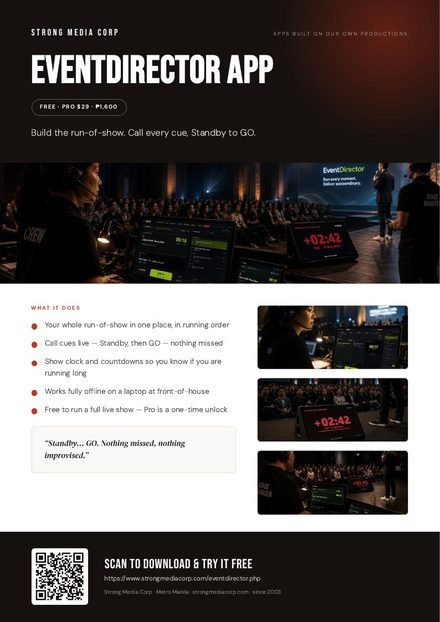 One-pager
Download PDF
One-pager
Download PDF